Lead vs Contact Salesforce: The One Click Field Reps Can't Undo
Lead vs contact Salesforce basics for field reps: what leads, contacts, accounts and opportunities are, when to convert, and what blocks a conversion.

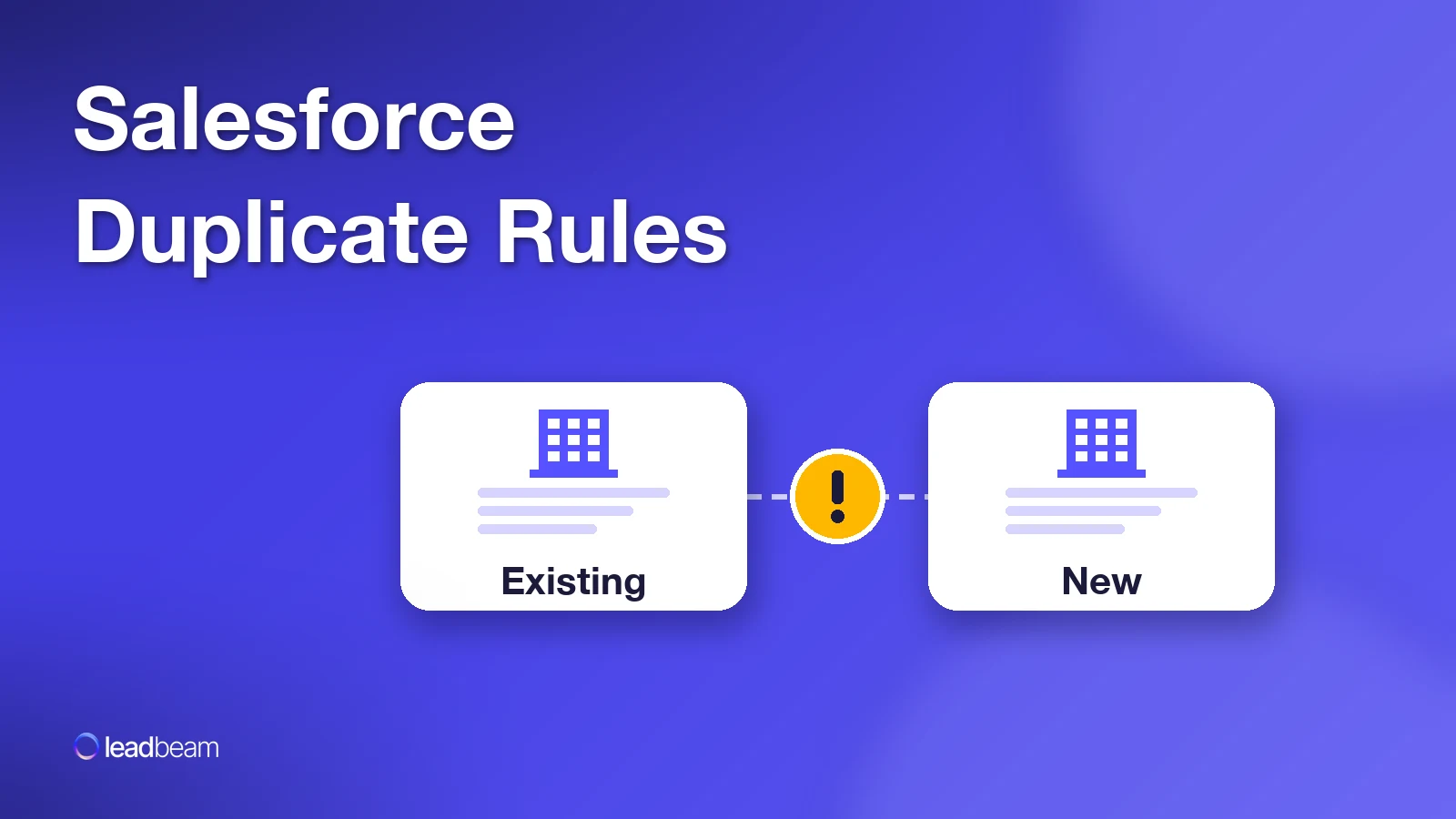
Salesforce duplicate rules decide what happens when someone creates or edits a record that looks like an existing one, and matching rules decide what counts as a match. The standard rules for accounts, contacts and leads alert the user but allow the save by default, and an admin can switch a rule to Block. A rule only catches what it can compare, so search first and fill in city, ZIP, email or phone before you save.
The warning popped up. You tapped Save anyway.
You were in the lot outside a new account, typing the owner's name with one thumb while the engine ran. Salesforce said the record looked like a duplicate. The next stop was across town, so you saved it.
That's allowed, for you and for every inside rep at a desk. Out of the box, Salesforce duplicate rules on accounts, contacts and leads are set to alert you but let you save.
What did that save cost? If the account already existed, your visit now lives on a record nobody else opens. The rep who owns the original walks in next month without your notes. Your manager sees two half-histories for one customer. And if the original sits in someone else's territory, you've just started a conversation about who gets credit.
Most of that traces back to one default, two missing fields and a habit you can fix in the parking lot. Reps get a three-step routine for the parking lot. Managers get the one setting worth arguing about, and it's not the one they'd guess.
Think of it as a bouncer with a guest list. Trailhead's version: matching rules identify potential duplicates, then duplicate rules determine what to do with them.
The matching rule is the guest list. It defines how duplicates are identified: which fields get compared, and how close two values have to be.
The duplicate rule is the bouncer. It decides what happens when a match walks up. Let it in with a warning, turn it away, or wave it through and write it down for later.
Now the part that surprises most sales teams. Salesforce's standard bouncers are polite:
| Object | Out of the box, when you create a record |
|---|---|
| Account | Warns you, lets you save |
| Contact | Warns you, lets you save |
| Lead | Warns you, lets you save |
In orgs created Summer '17 or later, the contact and lead rules also check each other.
Unless your admin changed them, every duplicate warning you've tapped past was a suggestion. Worth knowing before anyone blames a rep.
Your admin's choice decides what you see, and Salesforce's duplicate prevention guide shows each version.
Allow with alert. You type a phone number that already belongs to a lead. A banner says the record looks like a duplicate, with a View Duplicates link that lists up to 15 matches. Save anyway, or click and check. Between stops or between calls, saving is the easy tap. The banner can't tell you whether the match is your account or a stranger with a similar name, and checking takes time you don't have.
Block. Same banner, but the Save button stops working until you use the existing record. Annoying in the moment, and it does its job.
Block on a record you can't see. If the rule bypasses sharing, Salesforce checks every record in the org but won't show you one you can't access. That's the worst version for a rep: stopped by an account in another rep's territory that you can't even open. Don't hunt for a workaround. Text your manager and ask who owns it.
Records with twins get flagged too. In Lightning Experience, a card or toast may say Salesforce found potential duplicates. On your phone, though, that flag doesn't exist.
Which matters, because field records mostly start on a phone, where the app plays by different rules. Salesforce's mobile considerations page lists them:
When a card pops up mid-entry, read it before you touch it. If it's your account, cancel the new record and open the existing one from search. Tapping it on impulse costs you the whole form, usually right when the next appointment is calling. For what else to expect from a phone CRM, see our take on the best mobile CRM for sales reps.
Most reps never hear this part. A duplicate rule can only act on what its matching rule catches, and matching rules are pickier than you'd expect.
Name-only accounts slip past. The standard account matching rule says the new record must include an Account Name and either a City or ZIP code for accurate matches. A Salesforce knowledge article describes what happens otherwise: a rep creates an account with a name and no billing address, the same name already exists, and the record saves with no warning at all.
Small address differences break the match. Salesforce scores street addresses in sections against a threshold of 80. Its own example: 123 Market Street, Suite 100 and 123 Market Drive, Suite 300 score 70, so they don't match. You type the street from the sign. A teammate types it from the invoice. The rule sees two places.
Contacts need more than a name. Every line of the standard contact and lead matching equation starts with first name and last name, then needs one more field: email, phone, title plus company, or a street address. Blank fields don't count as a match.
Some paths skip the rules entirely. Duplicate rules don't run on Quick Create, on manually merged records, or on lead conversion unless Use Apex Lead Convert is enabled. Edits only trigger a check when the edited field is in the matching rule.
The rules do forgive sloppy typing. Company names drop words like "Inc" and "Corp" before comparing, and first and last names get checked in both orders to catch a swapped entry. What they can't forgive is an empty field.
Reps create duplicates one record at a time, often on a phone. Three patterns repeat.
You heard the owner's name over a counter or a phone line and spelled it the way it sounded. You wrote the business name as it's painted on the window. The fuzzy logic forgives most of that. It won't fill in the city or ZIP you skipped, and that's usually what stops the match. For a field rep, completeness beats spelling.
A store with two street entrances. A dropped suite number. A mailing address instead of the storefront. Each is reasonable, and each can fall below the address threshold. Trailhead's own example is SW Barnes Ave versus Southwest Barnes Avenue, which takes a custom fuzzy street rule to catch.
You meet a second buyer at an account you already sell to. You add them as a contact but skip the account field, because the next stop is waiting.
That contact is now private to you and your admins, whatever your sharing settings. Nobody else on the team can see it, so the next rep who meets that buyer creates another one. The same thing happens when you add a lead for someone who's already a contact. Our guide to lead vs contact vs account in Salesforce covers which record to create and when.
You know things the matching rule doesn't, like the owner's other location or the name on the old sign. The routine is three words, search, fill, flag, and it works from the car or a desk.
Search the business name two ways: the name on the sign and the legal or corporate name. Use complete words. If the list is crowded, Salesforce suggests a more specific term.
Search the phone number or street number. It's often the one field both versions of a record share.
Check every object. Lightning's top results group by the objects you use most, so click Accounts, Contacts and Leads under Search Results before you decide nothing exists.
Remember what search can't show you. Global search only returns records you can access. If someone else can see a record and you can't, it appears for them but not for you. No results isn't proof.
If you do create it, fill the matching fields: city or ZIP and phone on the account, email or phone on the contact, and always the account on the contact.
Found a duplicate that already exists? Flag it for your manager instead of fixing it on your phone, because the mobile app can't merge records. In Lightning Experience, someone with Delete permission on that object can combine up to three contacts or up to three leads at a time.
After a duplicate mess, the first instinct is to switch every rule to Block. For a field team, that's usually the wrong move.
Remember how Block behaves with bypassed sharing: a rep gets stopped by a record they can't open. On a phone, with a buyer waiting, that rep may skip logging the visit altogether. You traded a duplicate for a visit with no record, and a forecast built on visits nobody logged. That's the trade behind many CRM adoption problems in the field.
A setup that holds up better in the field:
Fix the inputs first. Make city or ZIP and phone required on new accounts. Without them, the standard account rule can't match reliably, and no Block setting changes that.
Allow with Report on fuzzy matches. Reps keep moving, and you get a list of what slipped through. Trailhead shows how to build a report on duplicates saved after a warning, using the Duplicate Record Items report type.
Use conditions to split field from inside sales. A rule can run only for certain profiles, roles or regions, so field users don't have to live with the same setting as a desk team.
Order the rules on purpose. If the first rule finds a match, later rules skip that record. Salesforce recommends running Block rules before Allow rules. You get up to five active duplicate rules per object.
Test as a rep. If a user can't access a field the matching rule uses, the rule doesn't find duplicates for that user. Ask your admin to test with a field rep's profile.
Fix the mobile card. Put city and phone in the search layout that feeds it.
Clean what's already there. For duplicates already in the org, matching rules can also run in duplicate jobs.
Then bring the duplicate report to weekly one-on-ones. A rep with a stack of duplicates doesn't need a lecture, just a look at which field they keep skipping. It's the same habit that keeps your pipeline visible from the field, and clean accounts are the base layer of any field sales operating system. If you're deciding what your team's CRM should handle beyond Salesforce's defaults, our field sales CRM guide lays out the options.
Salesforce duplicate rules can only compare what's on the record. Give them a city, a ZIP or a phone number and they finally have something to work with.
So the fix sits in two places. Your admin decides whether a match warns or blocks. You decide whether there's enough on the record to match at all.
Try this before Friday. Pull up your last ten new accounts and count how many have a city or ZIP. Fewer than ten means the duplicate rule has been working half blind, and so has every report built on those accounts.
Rules that decide what happens when someone views or starts creating a duplicate record, per Salesforce Help. A matching rule defines what counts as a duplicate.
The matching rule identifies potential duplicates by comparing fields. The duplicate rule decides what to do with them: allow, block, alert or report, as Trailhead explains.
No. The standard account, contact and lead rules default to Allow on create, with an alert. An admin can switch any of them to Block.
Often because the new record had only a name. The standard account matching rule needs an Account Name plus a City or ZIP to match reliably.
Yes, when you create a record. The app shows duplicate cards but doesn't flag existing duplicates, can't merge, and loses what you typed if you tap a card mid-entry.
Open the record, click View Duplicates, and choose up to three records to merge. You need Delete permission on that object.


Leadbeam Blog
Discover tips, strategies, and success stories to empower your field sales team and drive results.